Showing posts with label Blogging Tips and Tricks. Show all posts

Custom 404 Error Pages for Blogger

0 comments


Custom 404 Error Pages in Blogger"The 404 or Not Found error message is a HTTP standard response code indicating that the client was able to communicate with the server, but the server could not find what was requested." In simple words the page that will be displayed when the actual page is not found is called a 404 Error Page. Till now Blogger’s error page was a plain old design with more of orange in it and was not customizable. Now Blogger Error pages use the same template . This would help template designers in making up custom 404 Pages.This tutorial will help you in setting up a Custom 404 page for your Blog.

By Default, your Blogger Error page will display this error message

custom 404 page for blogger
You can Change this message to something else from the Blogger Settings.
The option is there at Settings > Search preferences > Custom Page not Found
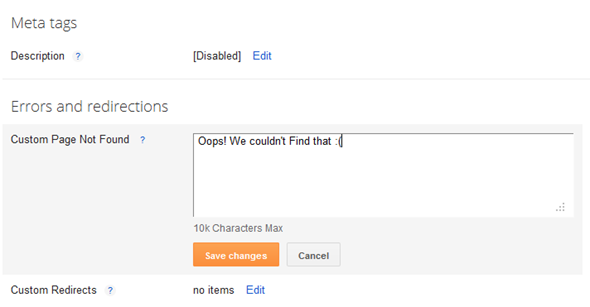
blogger-custom-404-message
If you want more than just a message, then we will have to fill up this text area with some HTML Code.. This is how my Error page Looks like

Instructions

  1. Login to your Blogger account and go to the Template page and proceed to Edit HTML
  2. Click on the Expand Widget Templates Check box so that your entire template comes up
  3. Now Look for </head> and immediately before that paste this snippet
    <b:if cond='data:blog.pageType == "error_page"'>
    <style type="text/css">
    .status-msg-wrap {
    font-size: 100%;
    margin: none;
    position: static;
    width: 100%;
    }
    .status-msg-border {
    display:none
    }
    .status-msg-body {
    padding: none;
    position: static;
    text-align: inherit;
    width: 100%;
    z-index: auto;
    }
    .status-msg-wrap a {
    padding: none;
    text-decoration: inherit;
    }
    </style>
    </b:if>
    This code snippet will reset the default styling given to the Blogger Message Wrapper.
  4. Save the template and go to a page on your blog which doesn’t exist.
  5. You should be able to see the change now. The grey background and the border around the 404 status message would no longer be there.
  6. Now Let’s see how we can improve the look and feel of our 404 page. I would suggest you to use inline CSS styles to improve the look and Feel of your 404 message.Here is a sample HTML template which you can paste into the text box at Search preferencesCustom Page not Found.
    <h3>Your requested page was not found</h3>
    <p>Sorry, we cannot find the page that you are looking for. It might have been removed, had its name changed, or is temporarily unavailable.<br/>
    Please check that the Web site address is spelled correctly.</p>
    <b>Other things to try:</b><br/>
    <ul>
    <li>Go to our <a href="/">home page</a>, and use the menus or links to navigate to a specific post.</li>
    <li>
    <form method="get" action="/search">
    <table width="100%">
    <tr>
    <td><input type="text" style="width:95%;padding:2px;" value="Search this blog.." onfocus="if (this.value == &quot;Search this blog..&quot;) {this.value = &quot;&quot;}" onblur="if (this.value == &quot;&quot;) {this.value = &quot;Search this blog...&quot;;}" name="q"></td>
    <td><input type="button" Value="Search"></td>
    </tr>
    </table>
    </form>
    </li>
    </ul>
  7. It will give you something similar to my 404 page.
  8. If you are creative, you can add more stuff to the 404 pages. You can find a list of really creative 404 pages on HongKiat for inspiration

DETECTING AN ERROR PAGE

Blogger has introduced a new page type called "error_page" and you can detect it using b:if conditional tags.
The following condition checks if a page is an error page or not.
<b:if cond='data:blog.pageType == "error_page"'>
This is an Error Page
</b:if>


CHANGING THE ERROR PAGE TITLE

By default the title of the Blogger Error Page is your Blog Title. If you want to change it to something else, you can Edit your template and change
<title><data:blog.pageTitle/></title>
to
<b:if cond='data:blog.pageType == "error_page"'>
<title>Page Not Found</title>
<b:else/>
<title><data:blog.pageTitle/></title>
</b:if>
If you are using my Title Tag Hack or derivatives of that available on the internet, then you will have to change
<!-- Start www.bloggerplugins.org: Changing the Blogger Title Tag -->
<b:if cond='data:blog.url == data:blog.homepageUrl'>
<title><data:blog.pageTitle/></title>
<b:else/>
<title><data:blog.pageName/><b:if cond='data:blog.pageName'> - </b:if><data:blog.title/></title>
</b:if>
<!-- End www.bloggerplugins.org: Changing the Blogger Title Tag –>
to
<!-- Start www.bloggerplugins.org: Changing the Blogger Title Tag -->
<b:if cond='data:blog.url == data:blog.homepageUrl'>
<title><data:blog.pageTitle/></title>
<b:else/>
<b:if cond='data:blog.pageType == "error_page"'>
<title>Page Not Found</title>
<b:else/>
<title><data:blog.pageName/><b:if cond='data:blog.pageName'> - </b:if><data:blog.title/></title>
</b:if>
</b:if>
<!-- End www.bloggerplugins.org: Changing the Blogger Title Tag –>

As I always say, if you get into troubles, you can use the comment form , Forum or our Facebook Wall :)
I’m sure that this is the first tutorial on Blogger 404 Pages on the Internet. Do share and keep us live :D

Read More »

Add Meta Description Tags to Blogger

0 comments

Add Meta Description Tags to Blogger

blogger meta tagsMeta Tags are HTML elements used to provide structured metadata about a web page. Such tags are placed in the head section of an HTML document and Search Engines might use this data to display the search snippet when they display a page from your blog. Most of the Social Sharing Tools like the Facebook Share or the Google Plus buttons will pick up this meta description to create the snippet which gets shared to the Social Networks.

How to add Meta Description Tags

Blogger has rolled out an array of SEO features and now adding Meta Tags has become so easy. You can do it easily from the Blogger’s User Interface without doing much of Template Editing or pulling your hair. So here is how to do it


  1. Go to Settings Search Settings and Enable Meta Tags. In the Text area give a 150 character description which will describe your Blog. This text might be used by Search engines when your Blog’s home page is displayed on Search Engines. Here is the snippet that I have given “Blogger Widgets provides you the best quality blogger tutorials.It also provides you with free blogger widgets and  gadgets to build a better blog.” Meta Tags For Blogger
    Meta description Tags displayed on Google
  2. Now when you make a Post, you can set the Meta Description from the Post Editor’s Post Settings  Sidebar. Meta description Tags For Blogger
    You can always edit the Search Description for existing posts as well
  3. If you are having a custom template, make sure that the following line of code is present in your template. To do that go to Templateand Proceed to Edit HTML . Find
    <b:include data='blog' name='all-head-content'/>
    If it's not present, add it just before </head>
  4. That's It you have done it.

Read More »

Redirect one page to another in Blogger

0 comments

custom redirection in blogger
Blogger has launched an Array of Search Engine related features and one of them is the ability to create Custom Redirects. Technically Blogger allows you to create 302 Redirects which are used to specify that the Web Page has temporarily moved to a new location.

What is a redirect ?
A visitor coming to a particular web address is redirected to another web address. This process is called Redirect. Blogger allows you to create Internal Redirects which means that you will be able to redirect the user coming to a particular URL on your blog to another URL on your Blog.

When are Blogger Redirects Useful?
Consider a situation where a page on your Blog was really popular and later you decided to delete it for some reason. Since that page is popular, references to that URL might be there at multiple Blogs/Websites which linked to you. The users coming to that popular URL will now be greeted with a 404 Page not Found Error. You might be loosing some potential readers/subscribers here. One way of resolving this would be to redirect the guy to some other relevant page. This is exactly what Blogger’s Custom Redirects do.

You can also use the Blogger Redirection Tool to create short links. For example you might want to redirect yourblog.blogspot.com/yourname to  your contact page. You can do that easily using the Blogger’s Redirect Tool.

How to add Redirects?
I will describe this using an Example. I had a post about Meta Tags on my Blog. This entry was made some 4 years back  and when Blogger launched the new Search Options, it became irrelevant. So I just deleted that post and made a new entry in my Blog with the new details. Now the visitors coming to that 4 year old URL from various sources would be greeted with a 404 error. I don’t want that to happen but I need that user to be sent to my new Blog Post.

1.To do a Redirect you should have 2 URLs. The first one is the URL which should be redirected to the target. The target is the second URL where the user should be redirected to.
2.The second thing that you have to do is to get the relative paths of these URLs.e.g.: The relative path to http://www.bloggerplugins.org/2008/06/meta-tags-for-blogger-blogspot.html is  /2008/06/meta-tags-for-blogger-blogspot.html . You might have already figured out that you should remove your Blog’s home page URL from the URL to get the relative path. You should also make sure that the Relative path starts with a slash (/)
3.Similarly you have to figure out the relative path to the Target URL. I opted for /2012/03/add-meta-description-tags-to-blogger.html
4.Once you have got these 2 Relative paths, you can do the Redirect at Settings > Search Preferences > Errors & Redirects > Custom Redirects Add the From and To Fields there and click on the Save link and then on the Save Settings Button
Custom Redirect Settings Blogger5.You can add more Redirects in a similar way.
Demo
Check out the following URLs and see how these get redirected

1.A Post which is no longer there http://www.bloggerplugins.org/2008/06/meta-tags-for-blogger-blogspot.html 
2.A Custom Short URL that I made http://www.bloggerplugins.org/contact

Both of these URLs will get redirected to a different page instead of showing a 404 Page.

Read More »

Custom Permalinks for Blogger Posts

0 comments

custom-permalinks-for-blogger-postsA permalink (or permanent link) is a URL that points to a specific blog entry after it has passed from the front page to the archives.Blogger generates this permanent link based on your post title(If the title is in English). For example if your post title is “Hello World”, the blog post’s permalink would be something like http://yourblog.blogspot.com/2012/06/hello-world.html   Till date Blogger never allowed the user to control what the permalink should be but it rather assigned a permalink on it’s own.

This has now changed and Blogger now allows YOU to decide what the permalink of your new post should be.

This feature is currently available in Blogger’s Draft Version. So if you would like to check it out, head straight over to http://draft.blogger.com and create a new post. In the post options you will see a permalink option.
image

If you select the “Automatic URL” (the default option), then Blogger will generate the permalink on it’s own. If you want to specify a custom URL, opt for the “Custom URL” option and you can enter your custom post permalink over there. It will allow you to enter alphabets, hyphens and underscores. It will just ignore underscores. So I just used a combination of hyphens and alphabets to create my post permalink


image


The Final Permalink will be something like

http://yourblogaddress/yyyy/mm/the custom URL that you specified

In my case it came to something like

http://myblog.blogspot.com/yyyy/mm/custom-permanent-link.html

Blogger doesn’t allow you to modify the Permalinks of old posts but you can make use of this new feature on your new posts  There seems to be no limit to the length of this Custom URL at the moment but Blogger might impose some length limit in future.

Read More »

A more dynamic mobile reading experience for Blogger User

0 comments
Last year we introduced mobile templates on Blogger, and Dynamic Views for the desktop. Since then, over 2 million blogs have started using Dynamic Views on desktop, and users have asked us for more mobile features. So today, we’re bringing the speed and advanced reading experience of Dynamic Views to mobile.  Configuring your blog to use a Dynamic View on mobile will result in a reading experience that mirrors the desktop, but is optimized for mobile.


To configure a Dynamic View for mobile on your blog, select the "Template" tab, and then click on the settings cog under the “Mobile” preview.  


If you’re currently using Dynamic Views on the desktop and have the “Default” mobile template selected, you don’t need to do anything -- your blog will automatically start using the mobile optimized view when viewed from a compatible mobile browser. For more information, see Blogger Help.


Currently, only the “Classic” view, which is best suited for small screens, will be shown on mobile. Tablets with large screens will get the full desktop experience. As with the older mobile templates, supported browsers are WebKit-based browsers (such as Android Browser, Chrome for Android and iOS, and Mobile Safari).  

We hope your readers enjoy the modern, compelling experience that this mobile update provides.

Read More »

Socialize and grow your blog with Google+

0 comments
Blogger lets you share your thoughts, grow your readership, and engage with your audience. But we want to make Blogger even better by letting you tap into the growing Google+ community. Today, we’re adding a new “Google+” tab in the Blogger dashboard, so you now have a central place to start growing your blog with Google+. This means you can now:


Connect your blog to a Google+ profile or page
If you blog under your own name, you’ve already been able to associate your blog with your personal Google+ profile.  Starting today, you can now connect your blog to a Google+ page for your brand, business or organization.


Notify followers when you publish, and let them recommend your content
Each time you post on your blog, we'll show you a Google+ share box to let you notify followers that you have new blog content.  If they like what you share, followers can +1 or reshare your post to their own friends on Google+. This ripple effect exposes links to your content to a wider audience.

Build enduring connections with your audience
Adding the Google+ gadget to your blog makes it easy for people to add your profile or page to their circles when they like something you’ve published. Forming connections with readers that last after they've left your blog is essential.  

To get started, click the “Google+” tab in the Blogger dashboard and then the “Upgrade” button. If you’ve already upgraded to Google+, we’ll help you associate your blog with your profile or page.


We'll be introducing more settings on this tab in the future, so stay tuned for additional ways to get more out of Blogger with Google+.  If you have questions, you can learn more in our Help Center.

Read More »

Customize your posts with permalinks

0 comments

Earlier this year we introduced a suite of new SEO features that help ensure your blog, posts, and images are accurately indexed so they appear correctly in search results. Today we’re happy to introduce another feature that enables you to more effectively customize your search preferences - custom permalinks.

When you write a post, Blogger automatically generates a permalink based on the title of the post. Until now, blog authors have had no control of the permalink. Custom permalinks give you more control of your blog and posts. These new custom links also provide readers with more information about your post when scanning search results.

If you prefer to use a custom permalink, you can do so via the “Permalink” option in the Post Settings box. 


To create your own URL for a specific post, simply select “Custom URL”, and enter your new URL in the field below. If you wrote the post in June of 2012, your new URL will look like this:


The bolded area is the portion of the URL that is customizable.

If the custom permalink you entered already exists, Blogger will attempt find a free one for you.

At present, the characters allowed in a custom URL are limited to: a-z, A-Z, 0-1. The only special characters available are underscore, dash, and period.

Click here to read more about custom permalinks in the Blogger Help Center.

Happy blogging!


Read More »

AUTO SCROLLING RECENT POSTS WIDGET FOR BLOGGER/BLOGSPOT

0 comments
Automatic scrolling Recent posts widget will give scrolling of post titles with links .This widget has automated MARQUEE Effect will result scrolling titles.

Watch live Demo
(Demo does not works properly here, But when we add as widget it Works Great!)


HOW TO ADD AUTO SCROLLING RECENT POSTS WIDGET?


<script type="text/javascript"> var nMaxPosts =10;        var nWidth = 100;        var nScrollDelay = 50;        var sDirection = "left";        var sOpenLinkLocation = "N";        var sBulletChar = ">>>";</script><script src="http://bloggerblogwidgets.googlecode.com/files/recentpostsscrollerv2.js" type="text/javascript"></script><script src="http://computersexpertise.blogspot.com/feeds/posts/default?alt=json-in-script&amp;callback=RecentPostsScrollerv2&amp;max-results=10" type="text/javascript"></script>
Step-1: Change blog url-http://computersexpertise.blogspot.com to your blog url link.then


Step-2: Go to Blogger dashboard : Blog layout >>Add Widget>>Add HTML Widget -


Copy paste the Above code  and save .


Please Leave your comments and responses for better improvement this widget and my blog


Read More »

New facebook Comment widget For blogger : Install in easy steps

0 comments

Again, this is the most waited feature for blogger users ( specially from allblogtools.com ), and now it’s available for allblogtools.com visitors only ( Exclusively again ), this is the first and the only tutorial around the web that tells you in really easy steps the integration of the new facebook comments box and blogger (blogspot) blogs.


Please note: If you think that you saw this tutorial before, The answer is no, it looks exactly like the old tutorial but this is an updated one, And a lot of problem are solved now, If you met any problems with our old tutorial, please try this one out.
For Upgrade: If you already have the old comments box on your blog, And don’t want to lose your current comments, Please Click here to learn how to upgrade easily.
 Warning : Before you start applying any changes to your blogger template code, We encourage you to Backup it, by clicking on Download Full Template link.


  • What is the new facebook comments features.
  1. Threaded comments : reply to comments.
  2. User network : now it’s displaying the comment author not only name, but his profile info as well
  3. Permalink to specific comments : Permalinks have now been assigned to each comment so people can share links and be directed to specific comments.
  4. Notifications : sent to users will also go to the permalink, making it easier to respond. For example, clicking on the notification below will take you to the permalink of the original comment.
  5. 2 Color schemes, regular light, and the new dark colors.
  6. now let’s do it, don’t worry, i know that must of you tried to add it to blogger blogs, with no result, but today you’ll see how to add it in really easy steps and it’s 100% working. but please be careful and pay attention for all the details.
  7. This tutorial is updated.


Step 1. Disable Default Comments.
The first thing you should do it to disable blogger default comments. because you don’t want to have 2 comments forms.
go to your blogger account, navigate to settings >> comments
and next to comments field choose Hide, then scroll down and click Save Settings
Step 2. Generate your Facebook App ID.
now you should generate your own facebook app id, it’s really easy and one step process,
just go to this page, facebook developers
then click + Set Up New Application
enter your application name, ( you can type any name )
and check agree and click Create Application
then click on Connect tab (on the left tabs-list) or see the next image.
and fill the following info.
Connect URL : Enter your blog url and you must enter it with an ending dash. (for example: http://myblogname.blogspot.com/) .
Base Domain you must type blogspot.com
then click strong>agree and click Save Changes 
on the next page facebook will generate you alot of info. you’ll need only one line, it’s App ID:
just copy it and keep any where, we’ll need it in the next steps. please see the following image to see where you’ll find your facebook App ID:.


Step 3. Codes To Add To Your Template.
you must add the following codes to your blogger template to ensure that the comments box will work for your blog in the right way.
and in this step we’ll add the following codes,
  • xmlns attribute
  • SDK script
  • Open Graph protocol tags
  • Adding the xmlns attribute :
please go to your blogger account again, and navigate to, layout >> edit html >> and checkExpand Widget Templates
then find the following code,
<html
you’ll find it on the top of your code. second or third line, and after it add the following code,
xmlns:fb='http://www.facebook.com/2008/fbml'
you must type a space before it and after it,
here is an example.
 <html  xmlns:fb='http://www.facebook.com/2008/fbml'  expr:dir='data:blog..............2005/gml/expr'  >
  • Adding the SDK script Code :
search for
<body>
and after it add the following code,
<div id="fb-root"></div>
<script>
  window.fbAsyncInit = function() {
    FB.init({
      appId  : 'YOUR APP ID',
      status : true, // check login status
      cookie : true, // enable cookies to allow the server to access the session
      xfbml  : true  // parse XFBML
    });
  };

  (function() {
    var e = document.createElement('script');
    e.src = document.location.protocol + '//connect.facebook.net/en_US/all.js';
    e.async = true;
    document.getElementById('fb-root').appendChild(e);
  }());
</script>
but please don’t forget to change YOUR APP ID to your app id ( you got it in the previous step ).
  • Adding the Open Graph protocol tags:
copy the following code.
<b:if cond='data:blog.pageType == &quot;item&quot;'>
<meta expr:content='data:blog.pageTitle' property='og:title'/>
<meta expr:content='data:blog.url' property='og:url'/>
<b:else/>
<meta expr:content='data:blog.title' property='og:title'/>
<meta expr:content='data:blog.homepageUrl' property='og:url'/>
</b:if>
<meta content='MY-SITE-NAME' property='og:site_name'/>
<meta content='http://google.com/help/hc/images/logos/blogger_logo.gif' property='og:image'/>
<meta content='YOUR-APP-ID' property='fb:app_id'/>
<meta content='YOUR-FACEBOOK-PROFILE-ID' property='fb:admins'/>
<meta content='article' property='og:type'/>
and change the colored text to the following,
Change MY-SITE-NAME with the one you want to appear when a user likes a page. (Gil likes Helping on Facebook)
Changehttp://google.com/…/blogger_logo.gif with your blog logo, or remove the all tag if you don’t want it.
Change YOUR-APP-ID with your application ID number.
Change YOUR-FACEBOOK-PROFILE-ID with your own facebook user profile ID.
after making this changes add the above code just before
</head>
now we finished adding the facebook codes to your template, please don’t touch anything and continue to the next step.
Step 5. Adding the Comments Box to your blogger template.
please find the following code.
<data:post.body/>
and after it, please paste one of the following codes.
For Light Comments box ( like the one in the demo )
<b:if cond='data:blog.pageType == &quot;item&quot;'>
<p align='left'><img alt='' class='icon-action' height='51' src='https://blogger.googleusercontent.com/img/b/R29vZ2xl/AVvXsEiXrWRWfK4lx-dBoLBwustLm1lsCqiSDlsw6Dv5rh7oZ0XaXxnO9tl_YXc1j6wPNtlx1Q2iKrWGhbeHF2gKNW_xaF6OE5WEIcbx6uFighpAdE3x2oOJVQ5-9mMBssN2xR42Mw8O_H01Bpc/' width='331'/></p>

<script src='http://connect.facebook.net/en_US/all.js#xfbml=1'/>
<div><fb:comments width='450' expr:title='data:post.title' expr:href='data:post.url' expr:xid='data:post.id'/></div>
<div style='background-color: #f2f2f2;border: solid 1px #cccccc; font-size:10px; padding:3px;width:100%;'> <img alt='' class='icon-action' height='16' src='http://allblogtools.com/imgup/1-2010/allblogtools-blogger-templa.gif' width='16'/> <b><a href='http://www.allblogtools.com/' target='_blank' title='blogger templates'>AllBlogToolsFacebook comments for blogger</a> brought to you by <a href='http://www.allblogtools.com/' target='_blank' title='blogger templates'>AllBlogTools.com , Get Yours?</a></b></div>
</b:if>

For Dark Comments box ( If you prefer to display the comments box in a dark colors. )
<data:post.body/>
and after it, please paste one of the following codes.
For Light Comments box ( like the one in the demo )
<b:if cond='data:blog.pageType == &quot;item&quot;'>
<p align='left'><img alt='' class='icon-action' height='51' src='https://blogger.googleusercontent.com/img/b/R29vZ2xl/AVvXsEiXrWRWfK4lx-dBoLBwustLm1lsCqiSDlsw6Dv5rh7oZ0XaXxnO9tl_YXc1j6wPNtlx1Q2iKrWGhbeHF2gKNW_xaF6OE5WEIcbx6uFighpAdE3x2oOJVQ5-9mMBssN2xR42Mw8O_H01Bpc/' width='331'/></p>

<script src='http://connect.facebook.net/en_US/all.js#xfbml=1'/>
<div><fb:comments width='450' expr:title='data:post.title' expr:href='data:post.url' colorscheme='dark' expr:xid='data:post.id'/></div>
<div style='background-color: #f2f2f2;border: solid 1px #cccccc; font-size:10px; padding:3px;width:100%;'> <img alt='' class='icon-action' height='16' src='http://allblogtools.com/imgup/1-2010/allblogtools-blogger-templa.gif' width='16'/> <b><a href='http://www.allblogtools.com/' target='_blank' title='blogger templates'>AllBlogToolsFacebook comments for blogger</a> brought to you by <a href='http://www.allblogtools.com/' target='_blank' title='blogger templates'>AllBlogTools.com , Get Yours?</a></b></div>
</b:if>

To change the width of your comments box, please change 450 to what ever you want, it’s in pixels,
and now please click Save Template , then check your blog. i wish it looks great and works perfectly.


Read More »

Threaded Comments For Blogger Website

0 comments

Blogger has just announced the much awaited feature "Threaded Comments For Blogger" and you might have already seen it on your Blog if you are using a default Blogger Template. If you are using your own custom Template, then you will have to tweak your template for the threaded comments to appear.


This is how the Threaded Comments will look like (Screen shot taken form the Official Blogger Buzz Blog)


How to get the Threaded Comments ?

1. Make sure that you have enabled Comment Feeds

2. Use the Embedded Comment Form.

3. Now If you are not seeing the Threaded Comments, then it means that you have a customized template.

There are different methods to fix this. But before doing any of those download a backup of your Template.

On the Old UI, you can get a backup at option in Design > Edit HTML > Download Full Template


If you are using the New UI, then you can find the same at Template > Backup/Restore(Right Side) > Download full Template


Tweaks to get the Threaded Comments:

1. The simplest method is to reset each of your Widgets to default. Doing this will revert back any customization which you or the template designer has made to the Widgets.
You can reset the widgets by going to the Edit HTML page, and clicking on the link which says “Revert widget templates to default” . If you tried this and lost your Customizations, you can always get them back by re-uploading your Template using the Backup/Restoreoption
2. If you don’t want to reset the widget templates, then you will have to manually Edit your template.
Find each occurrence of this snippet
<b:include data='post' name='comments'/>
 and replace it with
<b:if cond='data:post.showThreadedComments'>
<b:include data='post' name='threaded_comments'/>
<b:else/>
<b:include data='post' name='comments'/>
</b:if>

and you should probably see the threaded view on your blog. If that too doesn’t help leave a comment here and we will try to debug it together :-)

Once you enable the threaded comments, your blog will by default show the 200 oldest comments, and you will see a load more link which will help the reader in viewing the rest of the comments


Read More »